
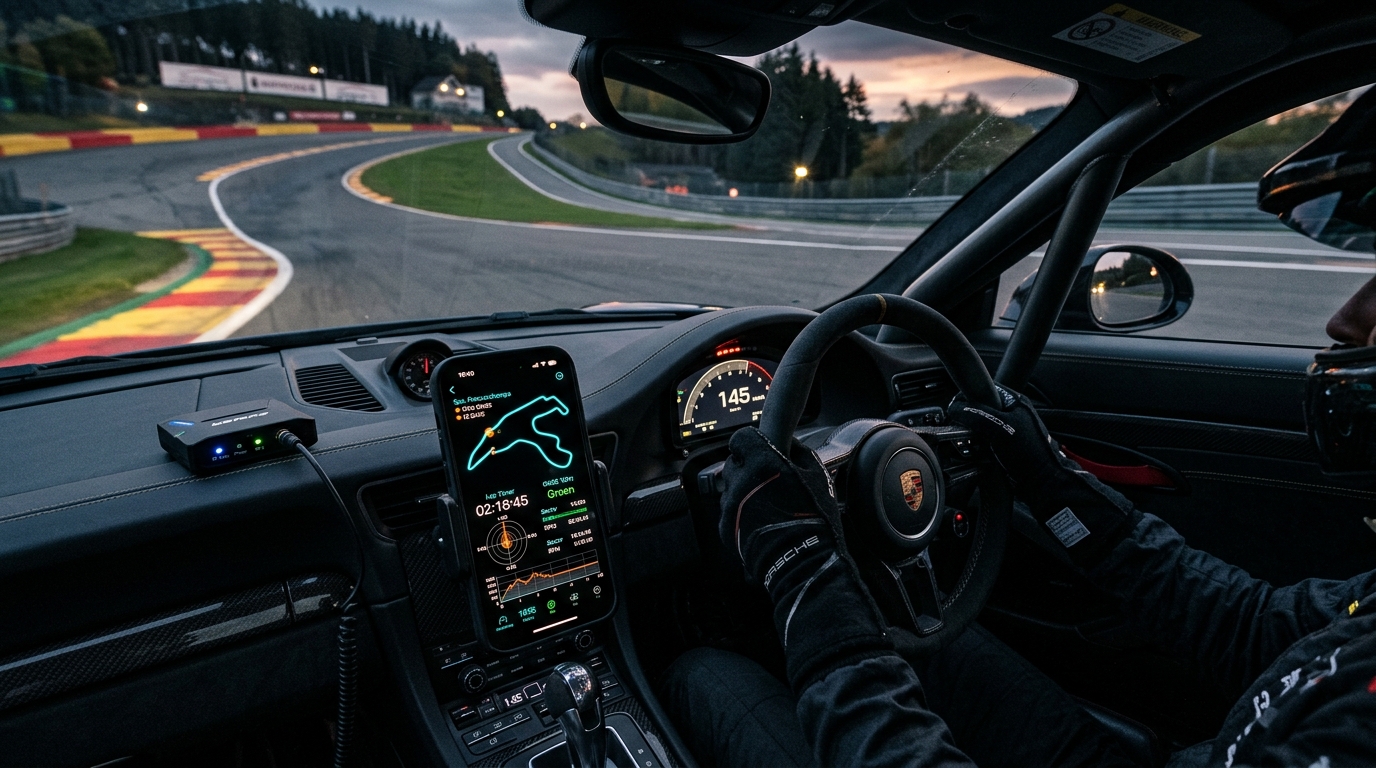
"I Nailed the Perfect Apex... Why Is My Trajectory in the Grass?!"
Driver Kim returns to the pit lane after an exhilarating trackday session, eager to analyze his lap telemetry on his smartphone. But when he inspects his driving line into Turn 1, his jaw drops: the GPS path skips right across the curb onto the infield grass, and around the hairpin, his car looks like it teleported.
"Wait, my phone is a brand-new $1,000 flagship! What gives?!"
Don't panic—your phone isn't broken. The culprit is the hardware limitation of the internal 1Hz smartphone GPS antenna.
1. 1Hz vs 10Hz: Blinking Once a Second vs 10 High-Speed Shutter Clicks
Smartphones are built primarily for daily navigation apps like Google Maps or Waze. In city traffic or highway cruising, updating position once per second (1Hz) is more than enough.
On a racetrack, however, physics takes over:
- A sports car charging at 180 km/h (112 mph) travels 50 meters (164 feet) every single second.
- With a standard 1Hz mobile GPS, a data point is recorded only once every 50 meters. There is no way to know whether you hit the clipping point, carried curb speed, or locked up on entry.
Now, imagine upgrading to a 10Hz to 25Hz external GNSS receiver:
With 10 to 25 measurements captured every second, points are plotted every 2 to 5 meters. Your braking points, apex kissing lines, and throttle commitment appear with razor-sharp fidelity on your dashboard!
2. The 4 Categories of External GPS: Choose Right the First Time!
External GPS hardware falls into 4 distinct categories based on wireless protocols and Apple iOS compatibility.
Understanding the difference between Generic SPP and MFi SPP is especially critical for iPhone racers to avoid buying incompatible gear.
| Category | Protocol | Popular Devices | Apple iOS (iPhone) | Android & PC | Key Highlights & Trade-Offs |
|---|---|---|---|---|---|
| Generic SPP | Bluetooth Classic (SPP) | Legacy Qstarz (BT-Q818XT), generic BT GPS | ❌ Unsupported (Blocked by Apple OS) |
⭕ Full Support (Virtual COM / Bridge Apps) |
Time-tested classic protocol, but Apple iOS blocks non-MFi Bluetooth SPP connections entirely. |
| MFi SPP | Bluetooth Classic + Apple MFi Auth | Garmin GLO 2, Dual XGPS160 | ⭕ Seamless Native 10Hz (Zero app setup required) |
⭕ Full Support | Armed with Apple's MFi authentication chip. Once paired in iOS Settings, it overrides internal GPS system-wide at 10Hz. |
| BLE | Bluetooth Low Energy (GATT / NUS) | RaceBox Mini / Micro, Qstarz BL-1000GT | ⭕ Full Support (Via Bluefy BLE Browser) |
⭕ Full Support (Chrome Web Bluetooth 1-Click) |
Modern industry standard. Streams high-rate data (10Hz~25Hz) without needing Apple MFi co-processors. |
| Wired USB | Direct USB Serial (CDC-ACM) | u-blox G-Mouse, VK-162 USB Antennas | ❌ Unsupported (No iOS Serial support) |
⭕ Full Support (Laptop USB / Phone OTG) |
Unbeatable value ($15–$25). Zero battery degradation and zero charging hassles—a secret weapon for budget racers. |
💡 Why Do "Generic SPP" and "MFi SPP" Behave Differently?
- Apple's MFi (Made for iPhone) Walled Garden: Due to strict security and licensing rules, iOS refuses to pair with generic Bluetooth SPP serial devices. Older Qstarz units that work flawlessly on Android will not even appear in your iPhone's Bluetooth scan.
- The Garmin GLO 2 Advantage: In contrast, MFi-certified hardware communicates directly with Apple's CoreLocation system. Pair it once in your iPhone's Settings, and Safari receives native 10Hz positioning with zero extra configuration!
3. How to Connect in MyLapLog (A Modern Web-First Lap Timer)
MyLapLog runs directly in your web browser—zero App Store downloads or bloatware required.
"Can a web browser really talk directly to external motorsport hardware?!"
Yes! Thanks to cutting-edge browser standards like the Web Bluetooth API and Web Serial API, MyLapLog interfaces natively with your hardware.
Here is how to connect in 60 seconds across your favorite devices:
📱 Case 1: Android Smartphones (Samsung Galaxy, Google Pixel)
- Open MyLapLog in the Google Chrome browser.
- Tap the [External GPS] button on your top bar or lap timer cockpit.
- For BLE Receivers (RaceBox, etc.): Tap the cyan
[Bluetooth (BLE)]button, choose your receiver from the prompt, and enjoy instant 10Hz~25Hz live telemetry! - For SPP / USB Wired Antennas: Pair via Bluetooth or plug in with a USB-C OTG adapter and click the green
[USB / SPP (Serial)]button.
🍎 Case 2: Apple iPhone (iOS)
Apple's iOS Safari restricts direct Web Bluetooth access for third-party websites. Fortunately, your path is crystal clear:
- MFi SPP Receivers (Garmin GLO 2 / Dual XGPS) — The Easiest Route:
Simply pair your receiver in iOS [Settings] > [Bluetooth].
Open MyLapLog in Safari. The system GPS engine automatically pipes the 10Hz high-rate telemetry into Safari—MyLapLog detects it on the fly and switches to External GNSS (10Hz). (No buttons to click!)
- BLE Receivers (RaceBox Mini / Micro, etc.):
Install the free Bluefy - Web BLE Browser app from the App Store.
Open MyLapLog inside Bluefy and click [Bluetooth (BLE)] to scan and pair directly!
- Generic SPP & Wired USB: Not supported on iOS due to Apple hardware policy.
💻 Case 3: Windows Laptops & Tablets (Windows 10/11)
Ideal for passenger-seat live telemetry and crew monitoring during trackdays:
- Open Chrome or Microsoft Edge on Windows 10/11.
- Plug your USB GNSS antenna into any USB port and place the magnetic base on your car roof.
- In MyLapLog, tap
[USB / SPP (Serial)], pick the COM port, and experience zero-latency 10Hz precision timing. (BLE receivers can also connect wirelessly via the Bluetooth button.)
🏁 Final Lap: The Most Cost-Effective Upgrade for Your Lap Times
Before spending thousands on coilovers, aero, and sticky tires to shave off a tenth, make sure you aren't measuring your driving with a 1-second lag.
Pairing your smartphone or laptop with an external GPS matched to your operating system gives you the clarity to see exactly where time is won or lost. When your braking and apex lines come into crystal focus, your driving technique will leap to the next level!